Open OpenConnector for the first time
A first look at OpenConnector — where the app lives, what the navigation gives you, and how to tell it is wired up and ready to integrate.
Goal
By the end you will have opened the OpenConnector app, recognised the dashboard and the left-hand navigation, and confirmed that the core lists (Sources, Endpoints, Mappings, Synchronizations, …) load without errors.
Prerequisites
- A Nextcloud account on an instance where the OpenConnector app is installed and enabled.
- The OpenRegister app installed and enabled — OpenConnector writes synchronised data into OpenRegister registers and schemas, so it is a hard dependency for almost every flow.
Steps
-
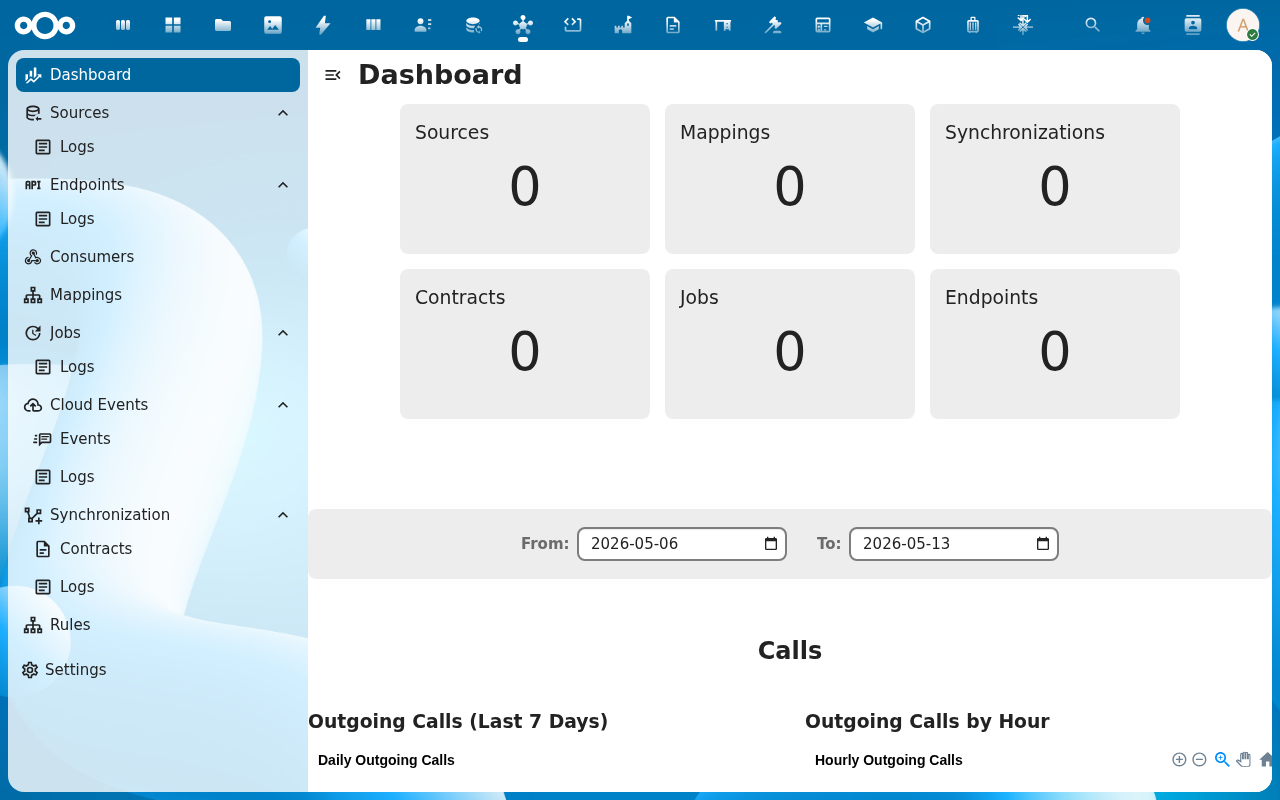
Open the Nextcloud app menu in the top bar and pick Connector. You land on the OpenConnector dashboard.
-
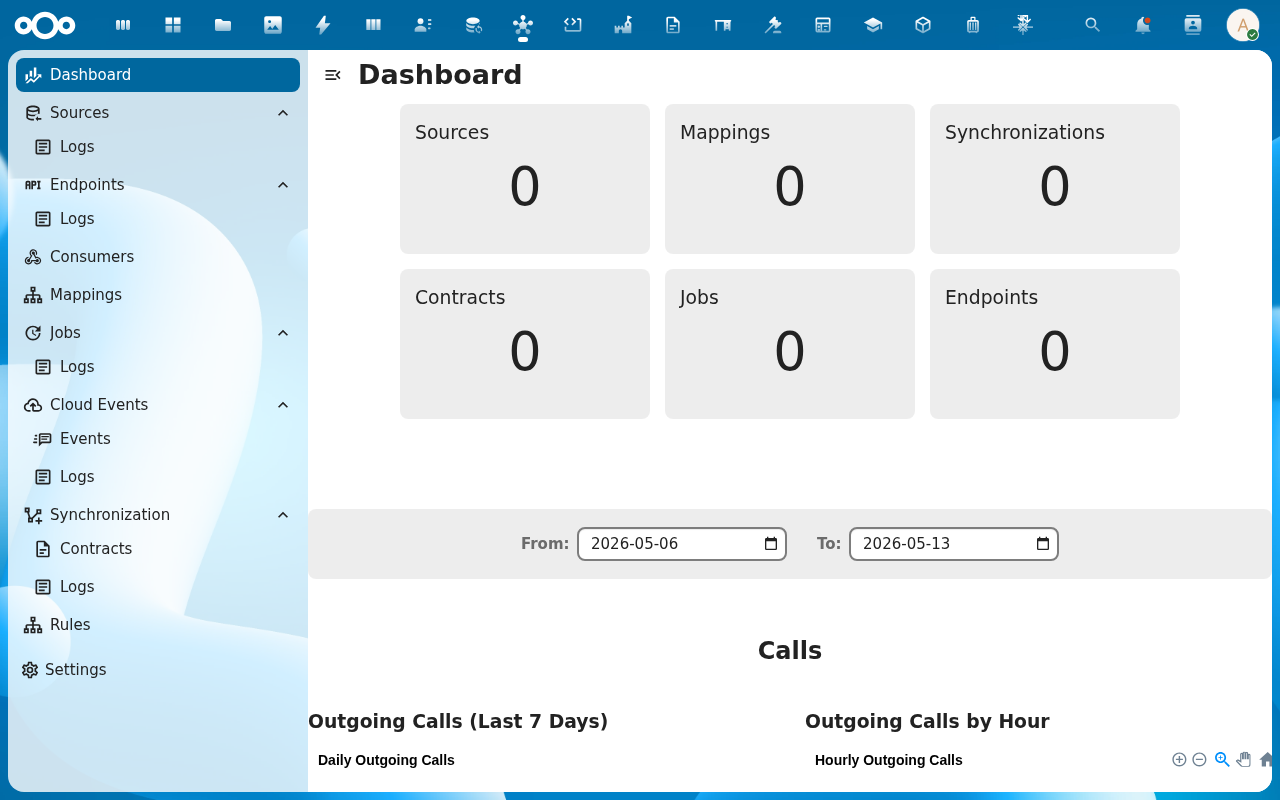
Read the dashboard panels — synchronization runs, source health, recent errors. On a fresh install they are empty; they fill in as soon as you configure your first source and run a sync.
-
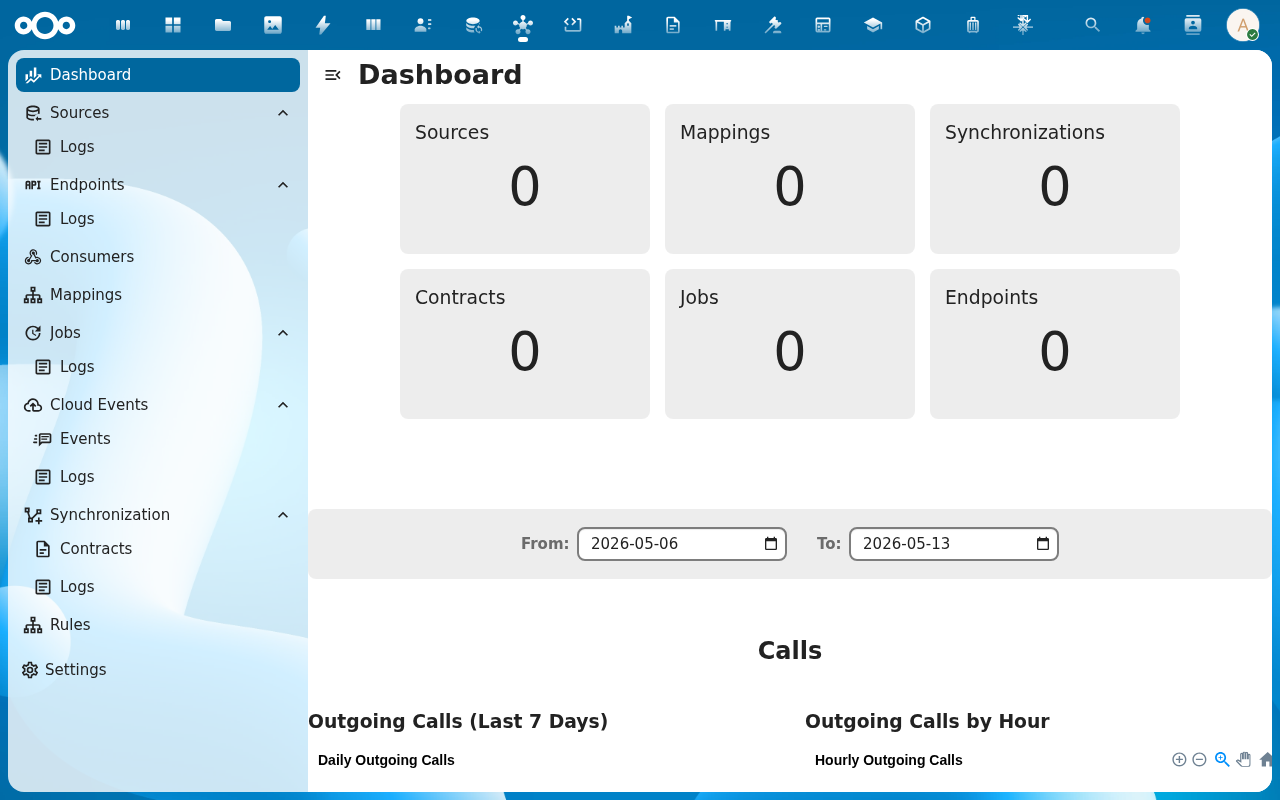
Open the left-hand navigation. The entries map one-to-one onto the OpenConnector concept model: Sources, Endpoints, Consumers, Mappings, Jobs, Cloud Events, Synchronization, Rules, Import. Each top-level item has a Logs sub-entry where every call is recorded for audit and debugging.
-
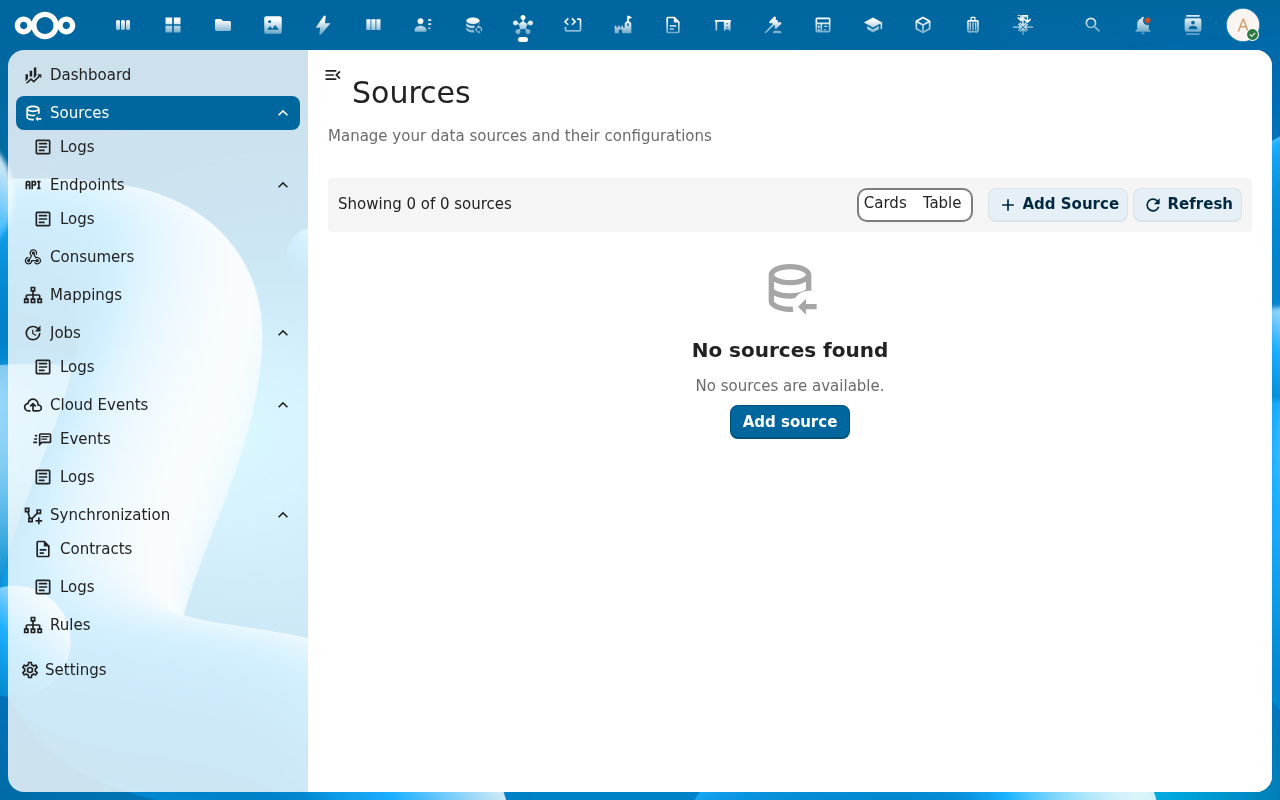
Click Sources. The list view opens with a Add Source button and a search sidebar. An empty install shows No items found — expected until you create the first source.
Verification
You are set up correctly when: the OpenConnector dashboard renders without an error banner, the left navigation lists the entries above, and clicking through to Sources (or any other list) shows either rows or a clean No items found state — not a load error.
Common issues
| Symptom | Fix |
|---|---|
| "OpenRegister is not installed or enabled" banner | Install and enable the OpenRegister app, then reload OpenConnector. |
| Dashboard or list panel renders blank with a console error | Clear the browser cache with Shift+F5 — the bundled JS sometimes lingers from a previous install. |
| OpenConnector is missing from the app menu | The app is not enabled for your account — ask an administrator to enable it (and check it is not restricted to a group you are not in). |
Reference
- Sources feature — full reference for the Source object.
- Synchronizations feature — how OpenConnector moves data between systems.
- Configuration management — import / export of full OpenConnector configurations.